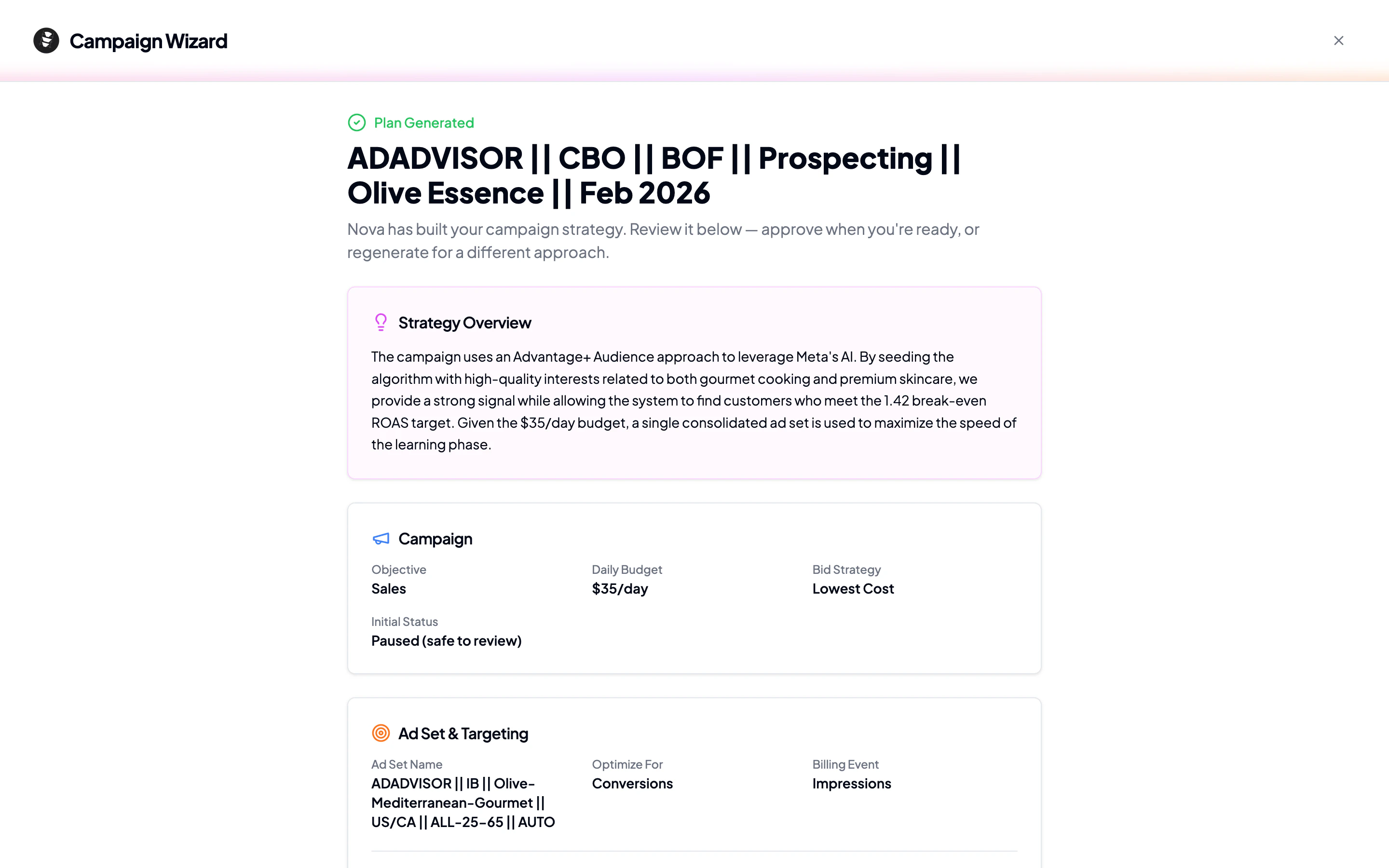
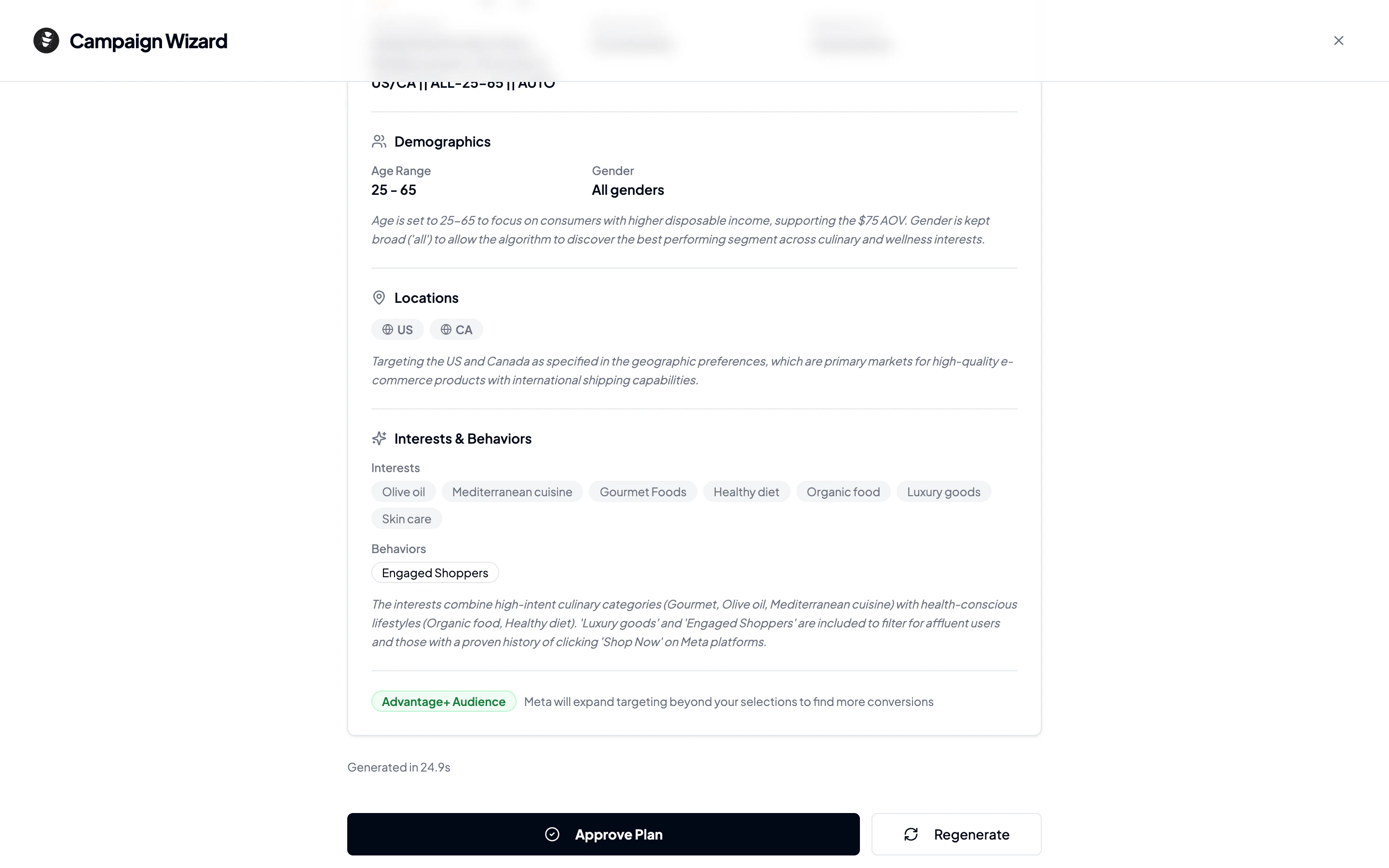
After the Campaign Wizard finishes generating, you’ll see a results page with your complete campaign plan. Here’s what each section means and what to look for.
Strategy overview
At the top, you’ll see a card explaining the AI’s overall approach. This is a plain-language summary of why the AI chose this particular campaign structure, targeting strategy, and budget allocation. Read this first to understand the big picture.
Campaign settings
This card shows the technical configuration for your campaign:
| Setting | What it means |
|---|
| Objective | What Meta will optimize for (e.g., Sales, Leads) |
| Daily Budget | How much you’ll spend per day |
| Bid Strategy | How Meta will bid in auctions (e.g., Lowest Cost) |
| Initial Status | Always starts as Paused so you can review before going live |
Your campaign always starts paused. Nothing runs on Meta until you explicitly activate it.
Ad set and targeting
This is the most detailed section. It breaks down who will see your ads:
Demographics
- Age range: The minimum and maximum ages targeted
- Gender: All genders, or a specific selection
- Estimated audience size: How many people fall into this targeting bracket
Geographic targeting
- Countries: The primary countries selected
- Cities: Specific cities with radius targeting (if applicable)
- Regions: States or provinces (if applicable)
Interests and behaviors
The AI researches Meta’s interest taxonomy and selects targeting dimensions relevant to your business. These are displayed as badges grouped by category:
- Interests: Topics and pages people engage with
- Behaviors: Purchase behavior, device usage, travel habits
- Income levels: Household income brackets (where available)
- Life events: Recently moved, new job, etc.
- Industries and job titles: Professional targeting
Advantage+ Audience
If enabled, this lets Meta’s algorithm expand beyond your selected targeting when it finds likely converters. The AI enables this when it thinks the algorithm will help.
What you can do from here
At the bottom of the results page, you’ll see action buttons depending on the plan’s current status:
| Plan status | Available actions |
|---|
| Draft | Approve Plan |
| Approved | Create Campaign on Meta |
| Deployed | Activate Campaign (resume from paused) |
| Live | View only (campaign is running) |
Next step
Happy with the plan? Head to Deploying Your Campaign to push it live on Meta.