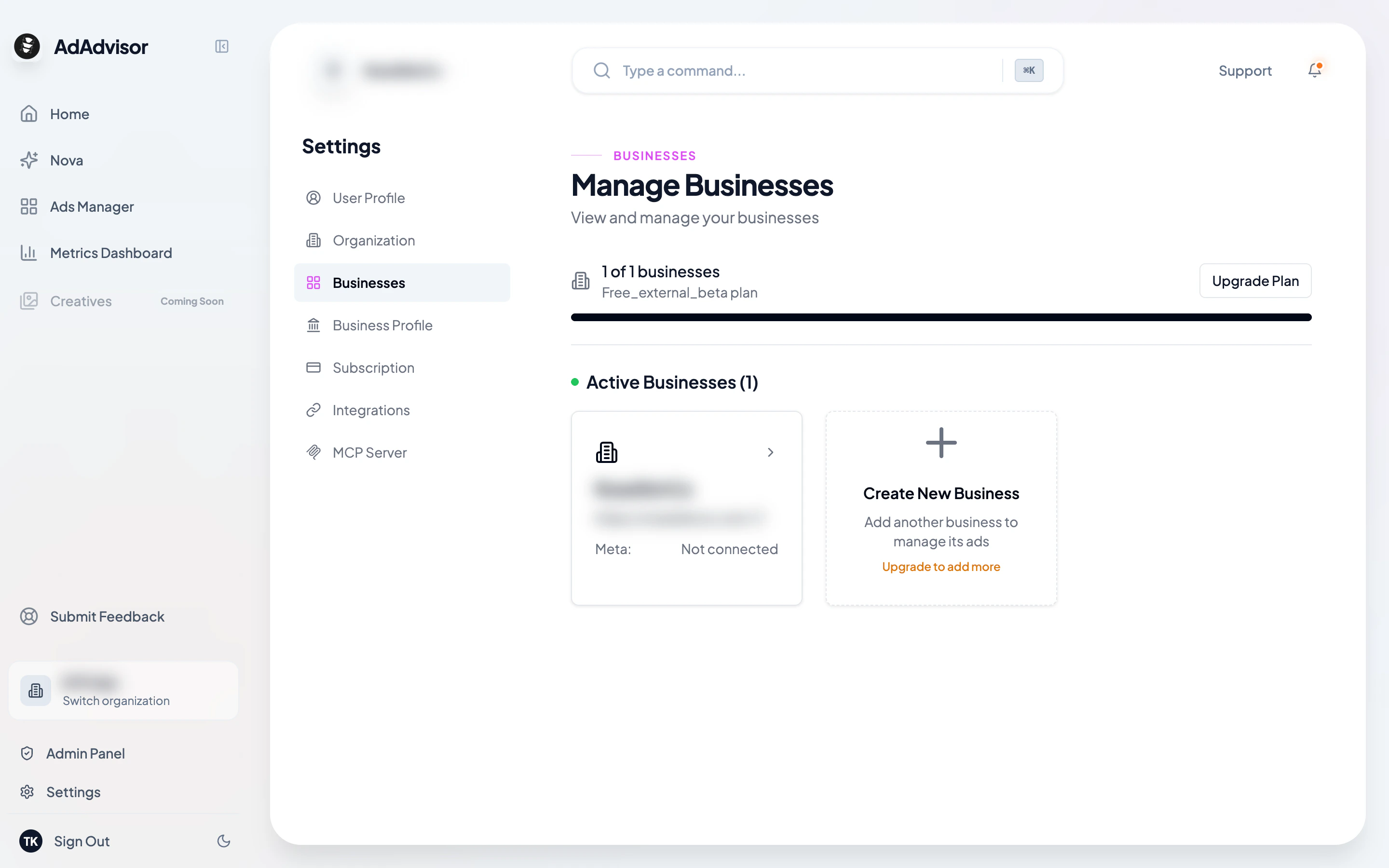
Viewing your businesses
Go to Settings > Businesses to see all businesses in your current organization. The page shows:- A usage indicator at the top (e.g., “2 of 3 businesses” based on your plan)
- Cards for active businesses, pending deactivation, and deactivated businesses
Creating a new business
Click the 'Create New Business' card
At the end of the active businesses grid, you’ll see a card with a plus icon. Click it to open the creation dialog.
If you’ve reached your plan’s business limit, this card will be disabled and show an “Upgrade to add more” message.
Fill in the details
The form has the following fields:
| Field | Required? | Description |
|---|---|---|
| Business name | Yes | The name of the brand or store |
| Storefront URL | No | Your website (used for AI business research) |
| Break-even ROAS | No | The ROAS you need to be profitable |
| Average Order Value | No | Your typical order value |
| Target CPL | No | Your target cost per lead (for lead campaigns) |
| Daily budget cap | No | Maximum daily ad spend across all campaigns |
Click 'Create'
The business is created and added to your organization. You can now select it from the sidebar.
Connect a Meta ad account
After creating the business, you’ll need to connect the Meta ad account associated with it. See Connect Meta Ads for how to do that.
Editing a business
Click the edit icon on any business card to open the edit dialog. You can update any field, including the business name, storefront URL, and all metrics.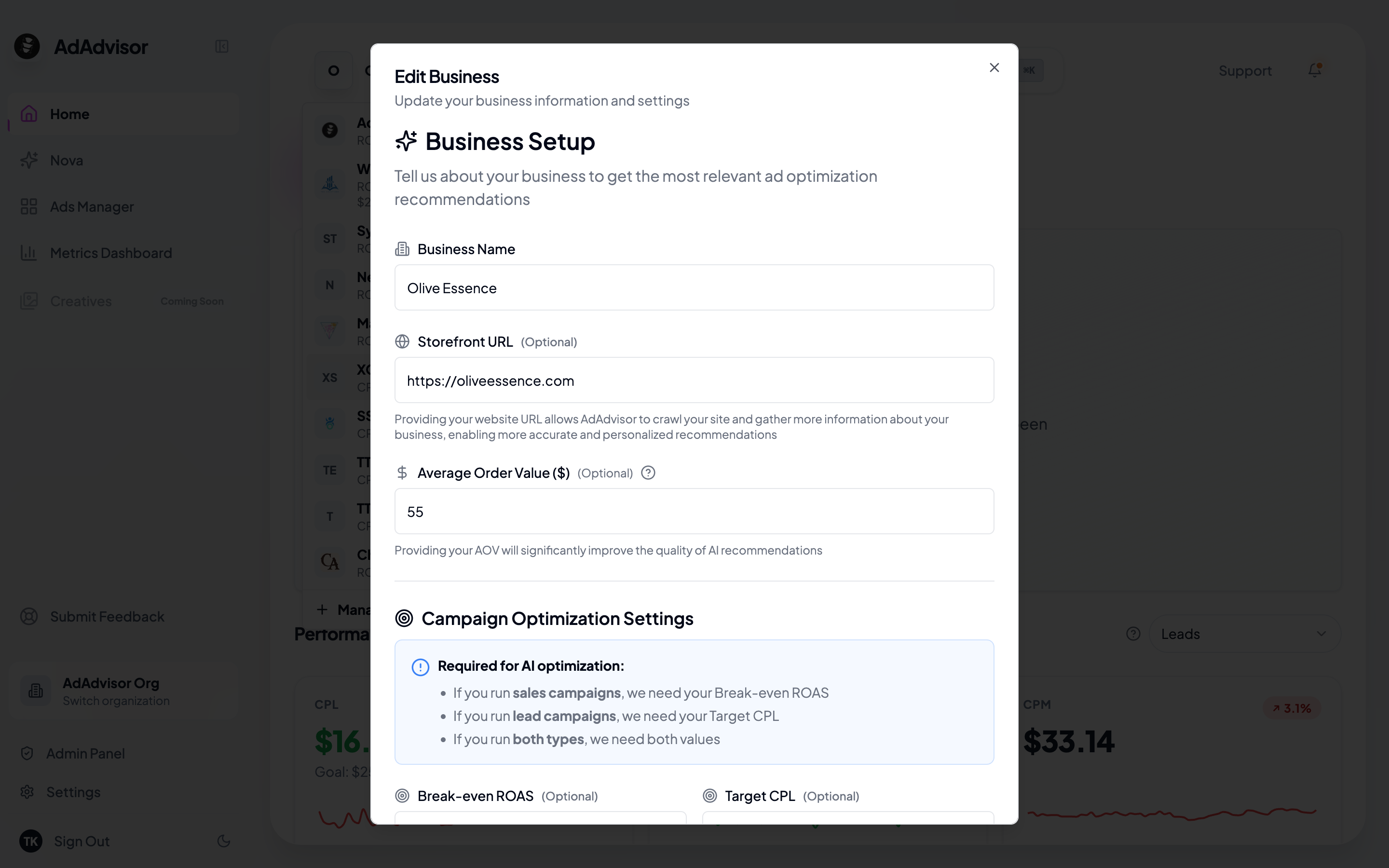
Deleting a business
Click the delete icon on a business card and confirm in the dialog. This permanently removes the business and its associated data.Business statuses
| Status | What it means |
|---|---|
| Active | Normal, fully functional business. You can view data, generate recommendations, and manage it. |
| Pending Deactivation | Scheduled to deactivate at the end of your billing period (usually because of a plan downgrade). Shows the deactivation date. Read-only. |
| Deactivated | No longer accessible. Shows a “Reactivate” button if you have available slots in your plan. |