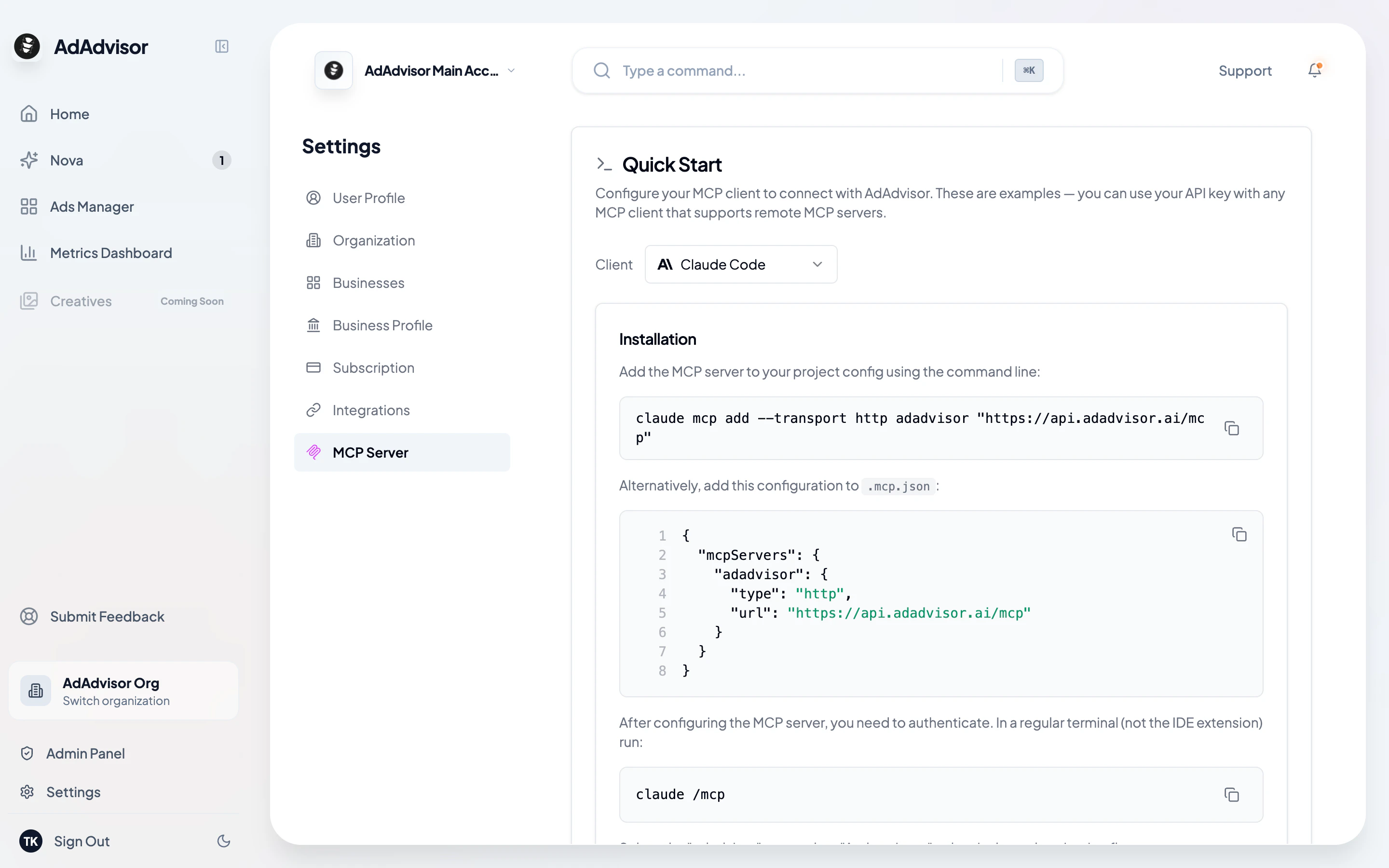
This page walks you through connecting your AI assistant to AdAdvisor’s MCP server. Pick your client below and follow the instructions.Documentation Index
Fetch the complete documentation index at: https://www.adadvisor.ai/docs/llms.txt
Use this file to discover all available pages before exploring further.
Prerequisites
Before you start, make sure you have:- An AdAdvisor account with at least one connected Meta ad account. Sign up here if you haven’t already.
- An MCP-compatible AI client installed (see the tabs below for supported clients).
- An API key (optional). OAuth is the default and recommended auth method. If you prefer API key auth, create one in Settings > MCP Server before starting. See Managing API Keys for details.
MCP server URL
All clients connect to the same server:Authentication
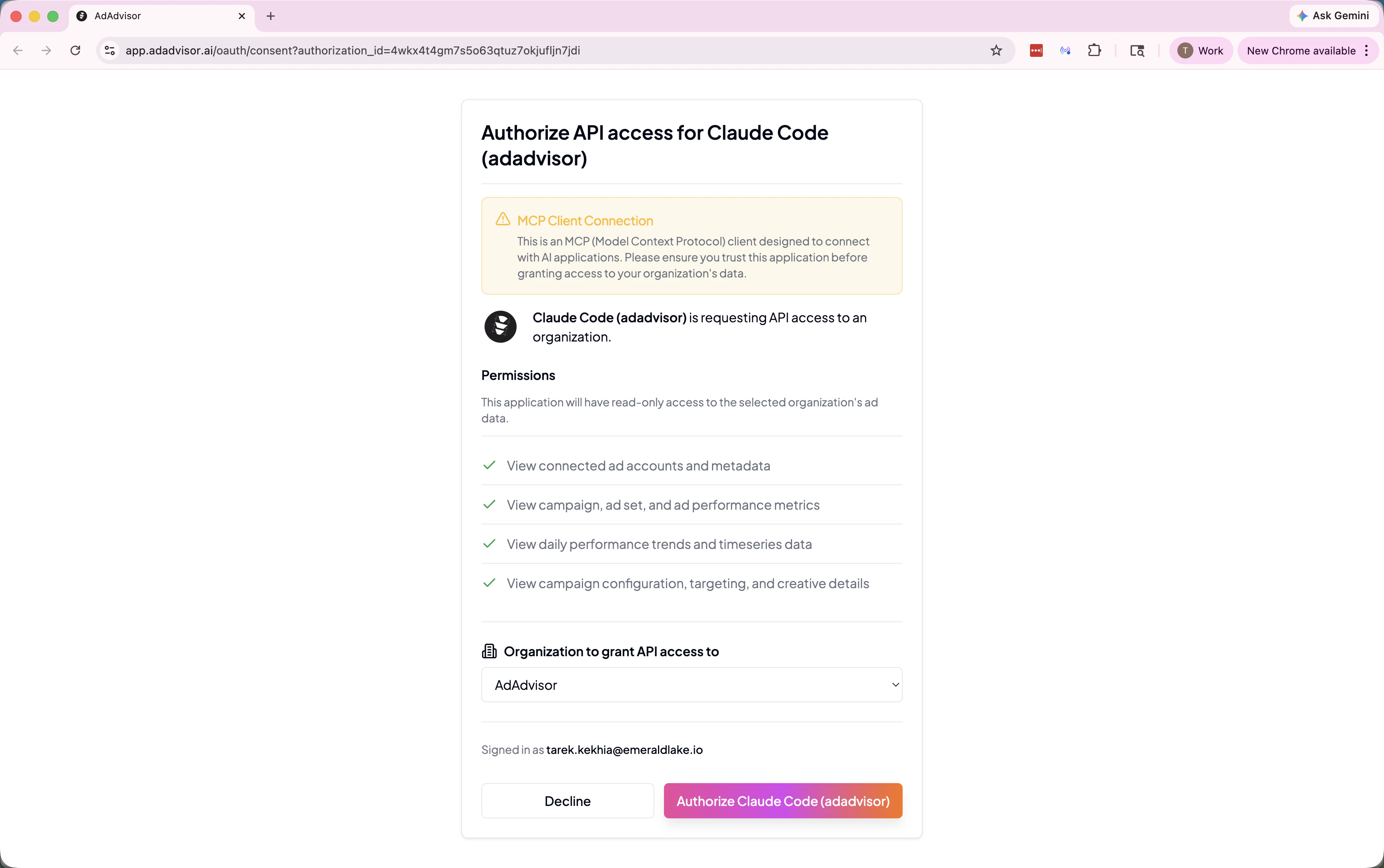
AdAdvisor supports two authentication methods:- OAuth (recommended): Your client opens a browser window where you log in to AdAdvisor. The token is issued and refreshed automatically. No key management needed.
- API Key: Pass a key in the
Authorizationheader. Useful for headless setups, CI/CD pipelines, or clients that don’t support OAuth.
Client setup
- Claude Desktop
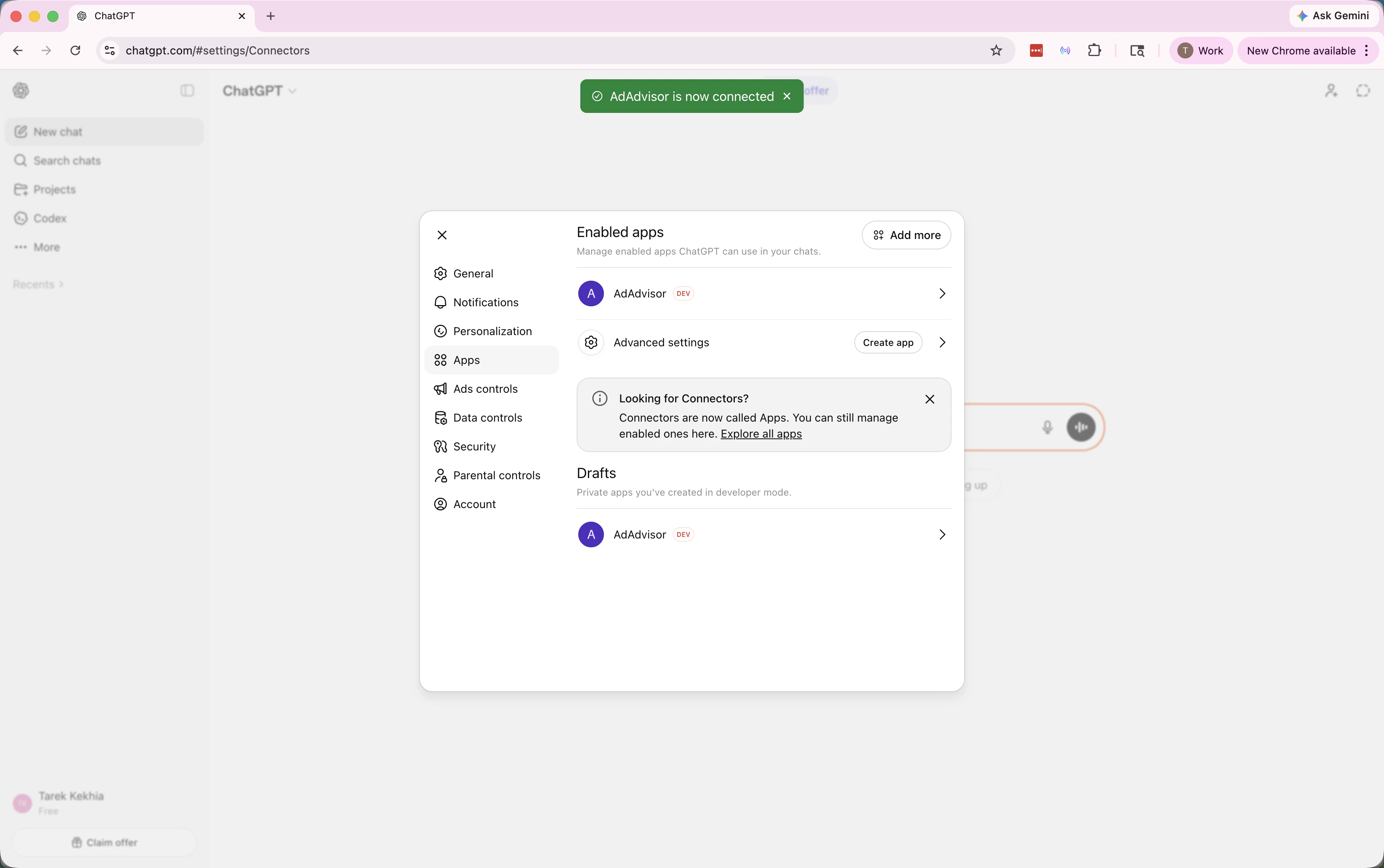
- ChatGPT
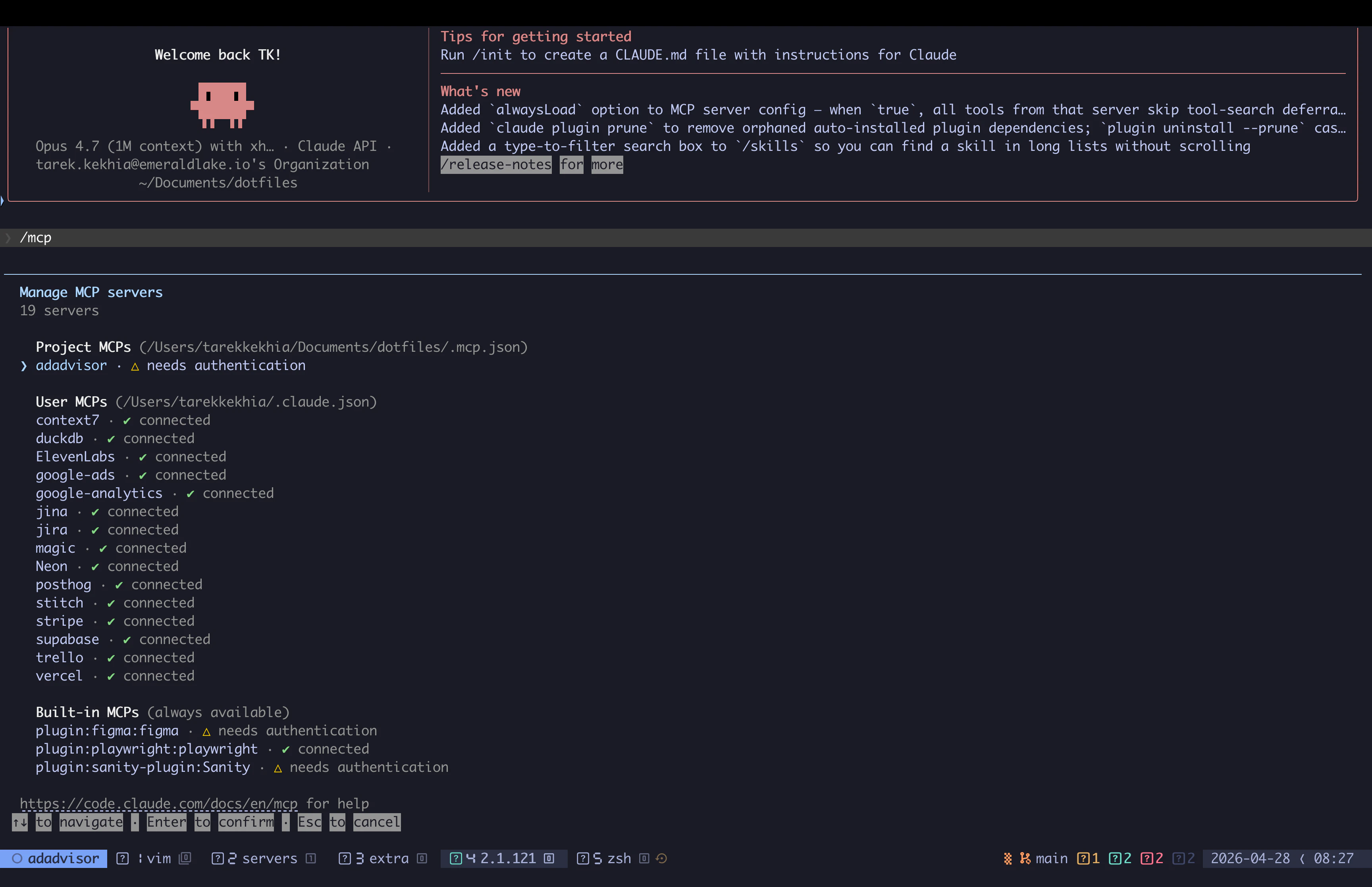
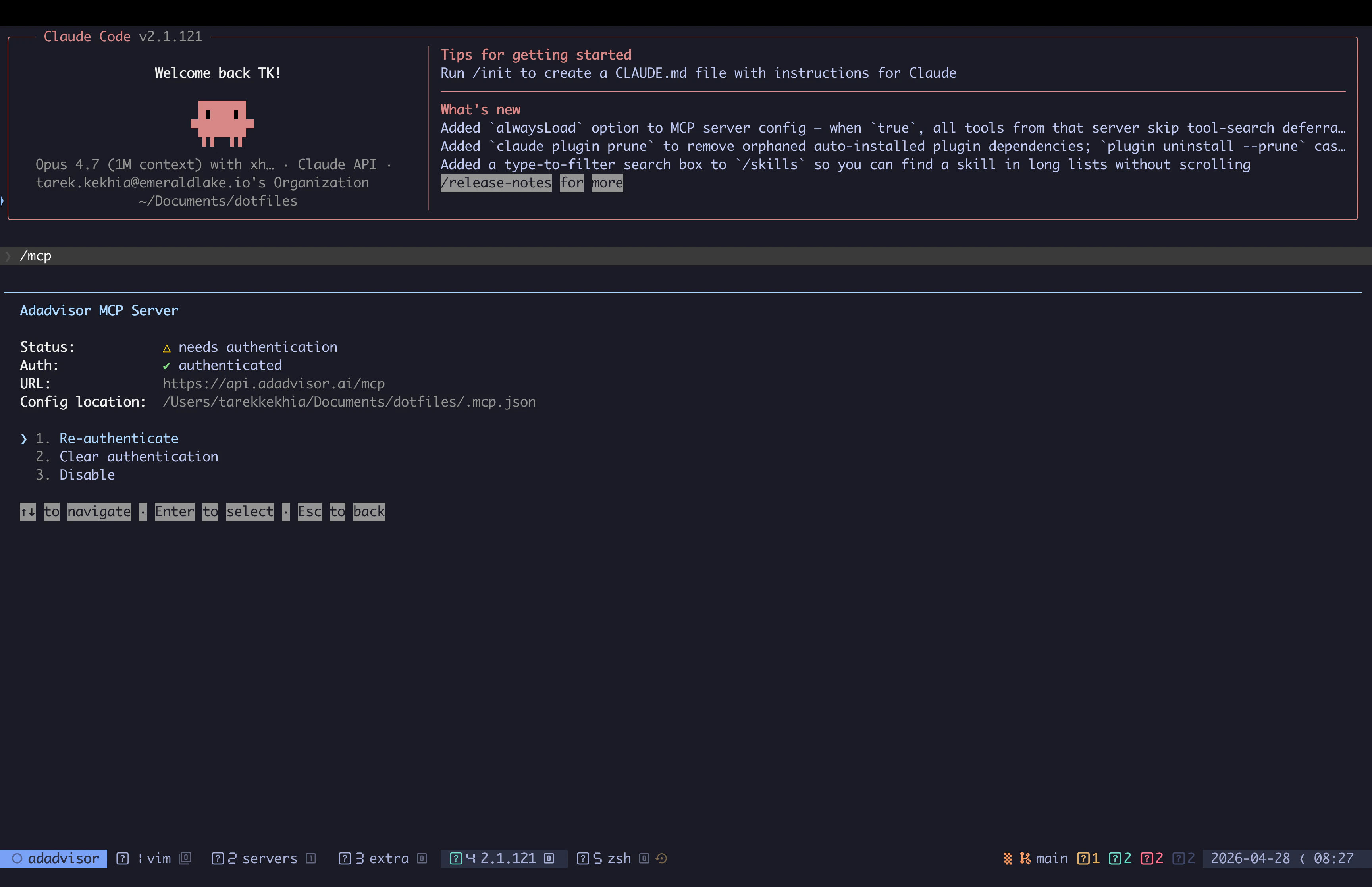
- Claude Code
- Other clients
Claude Desktop supports MCP servers through its Connectors UI. No API key needed.
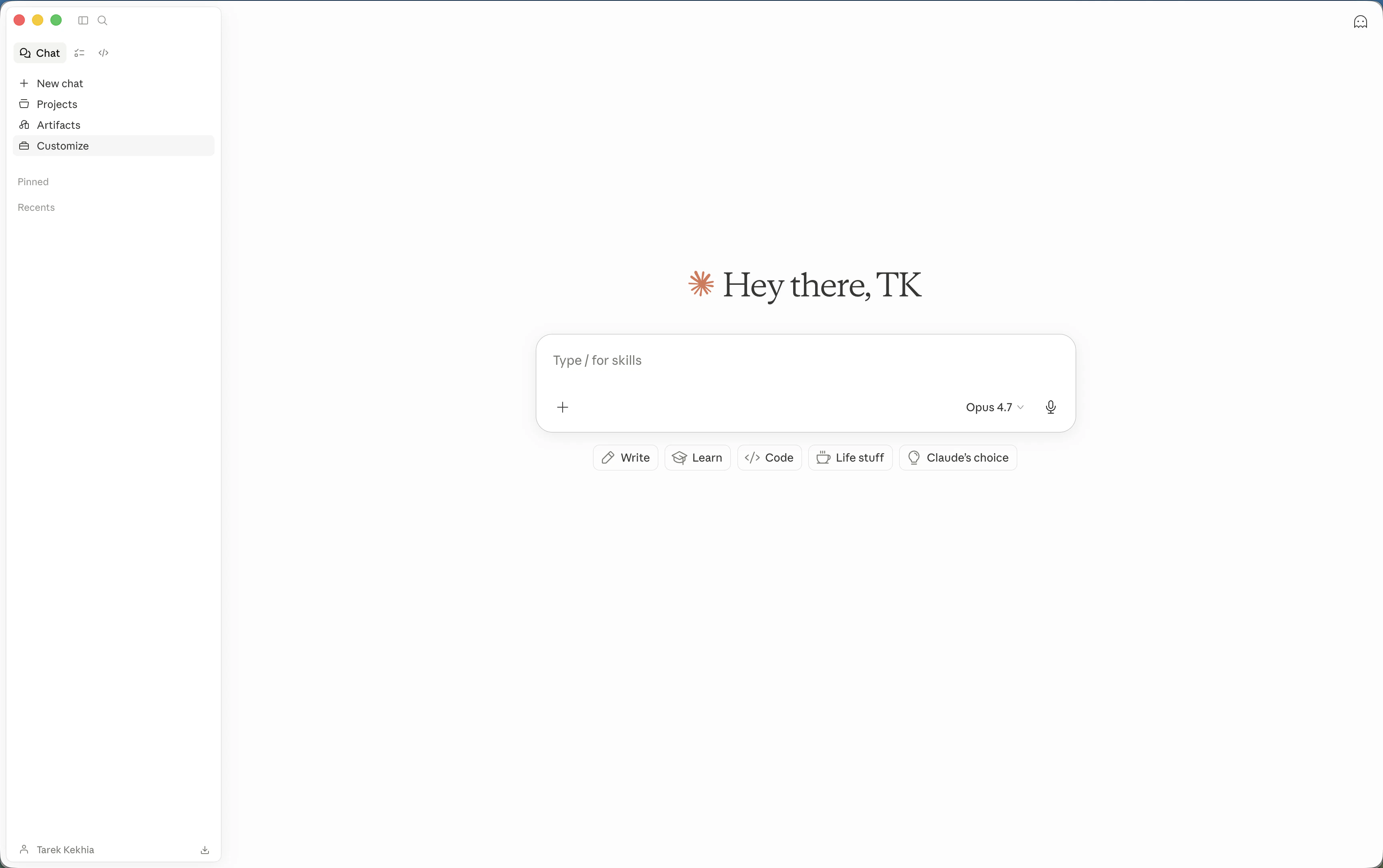

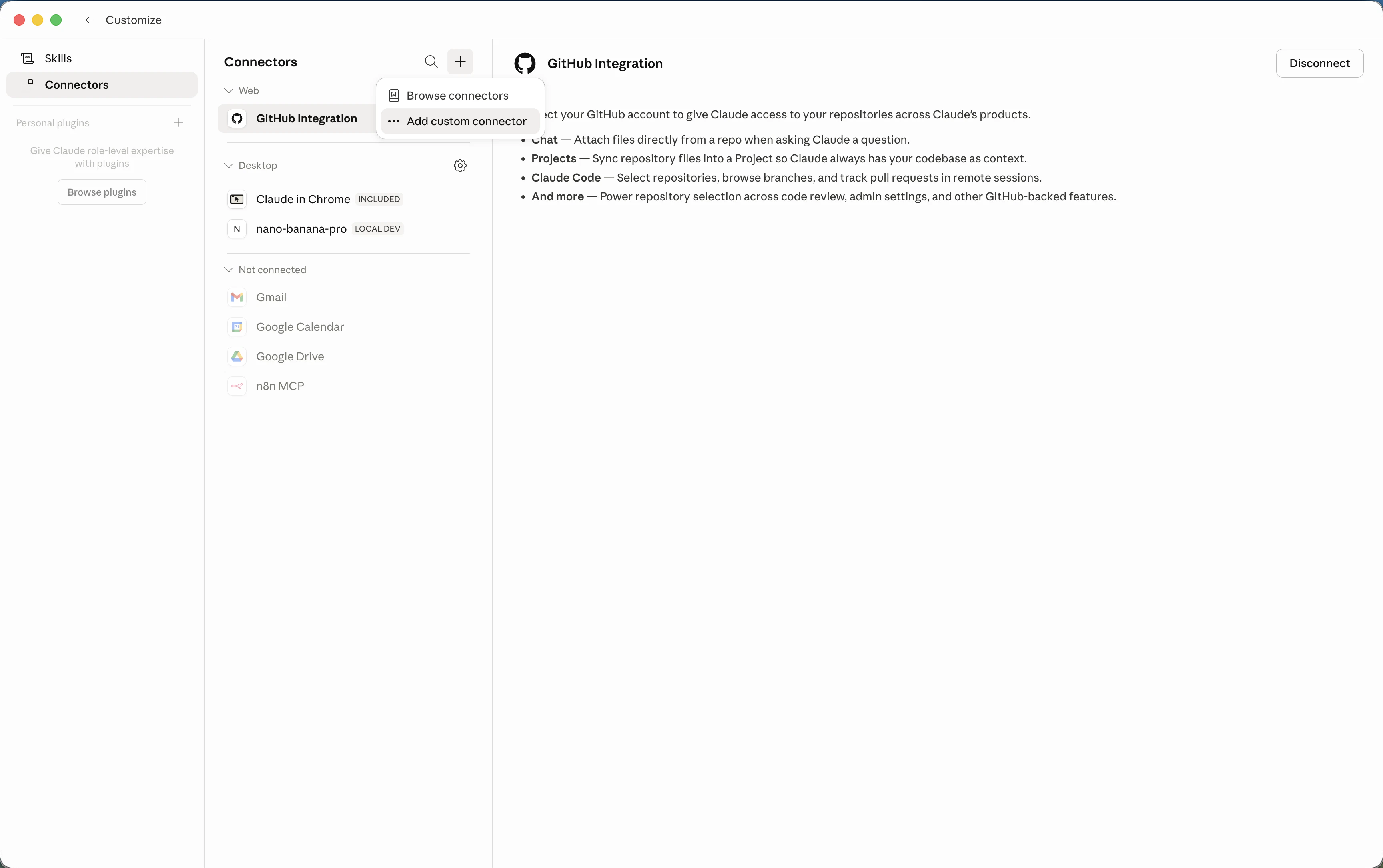
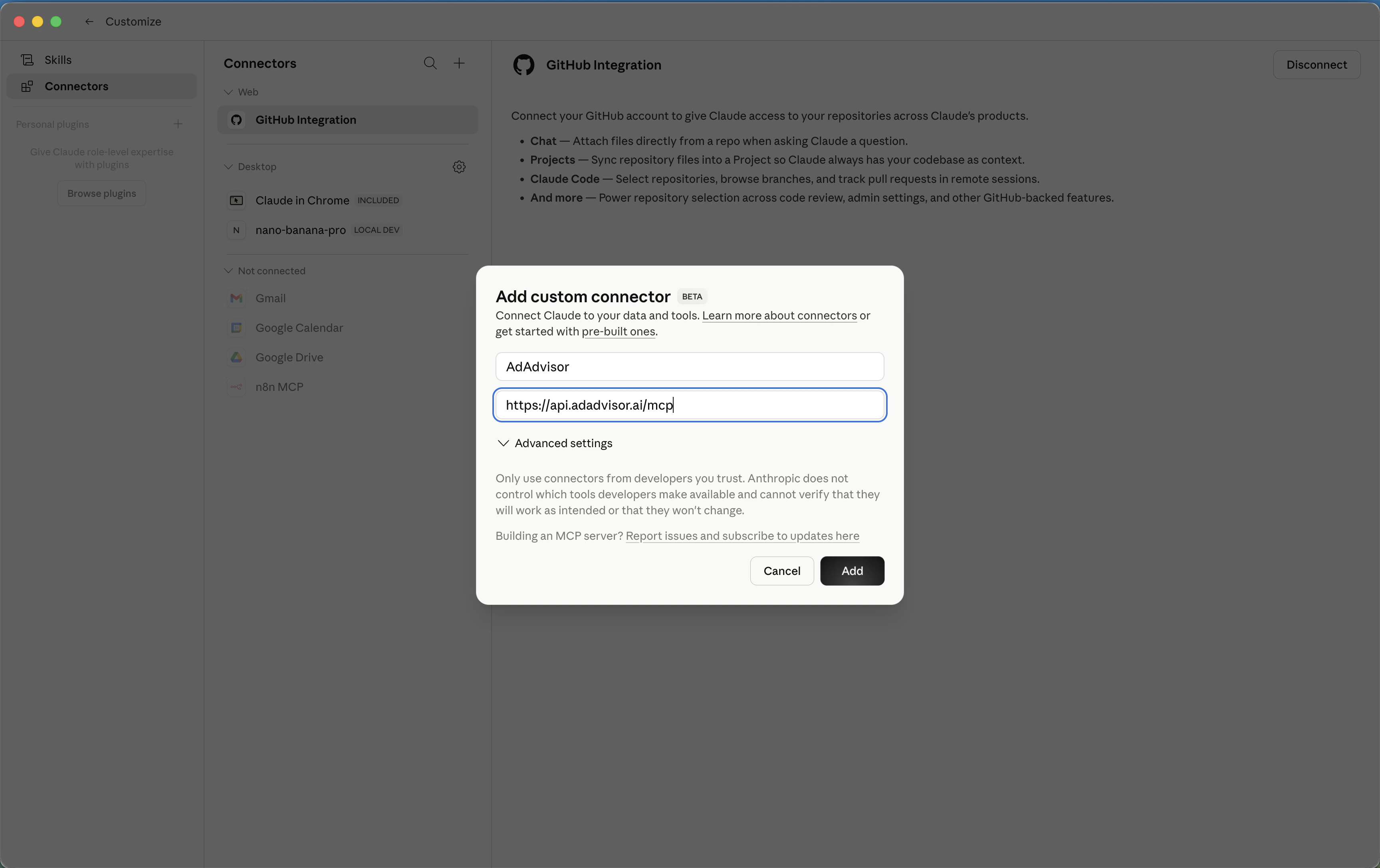
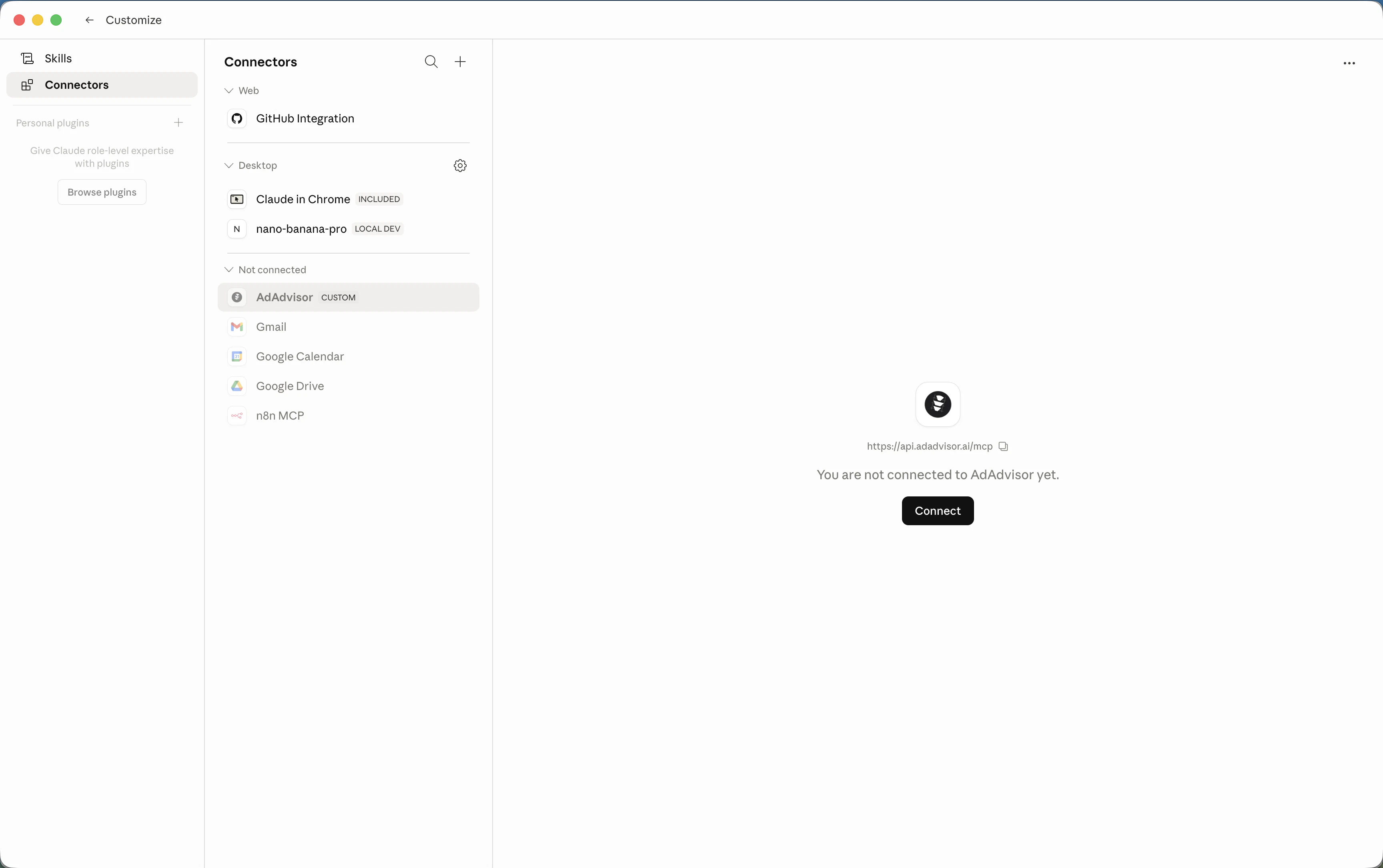
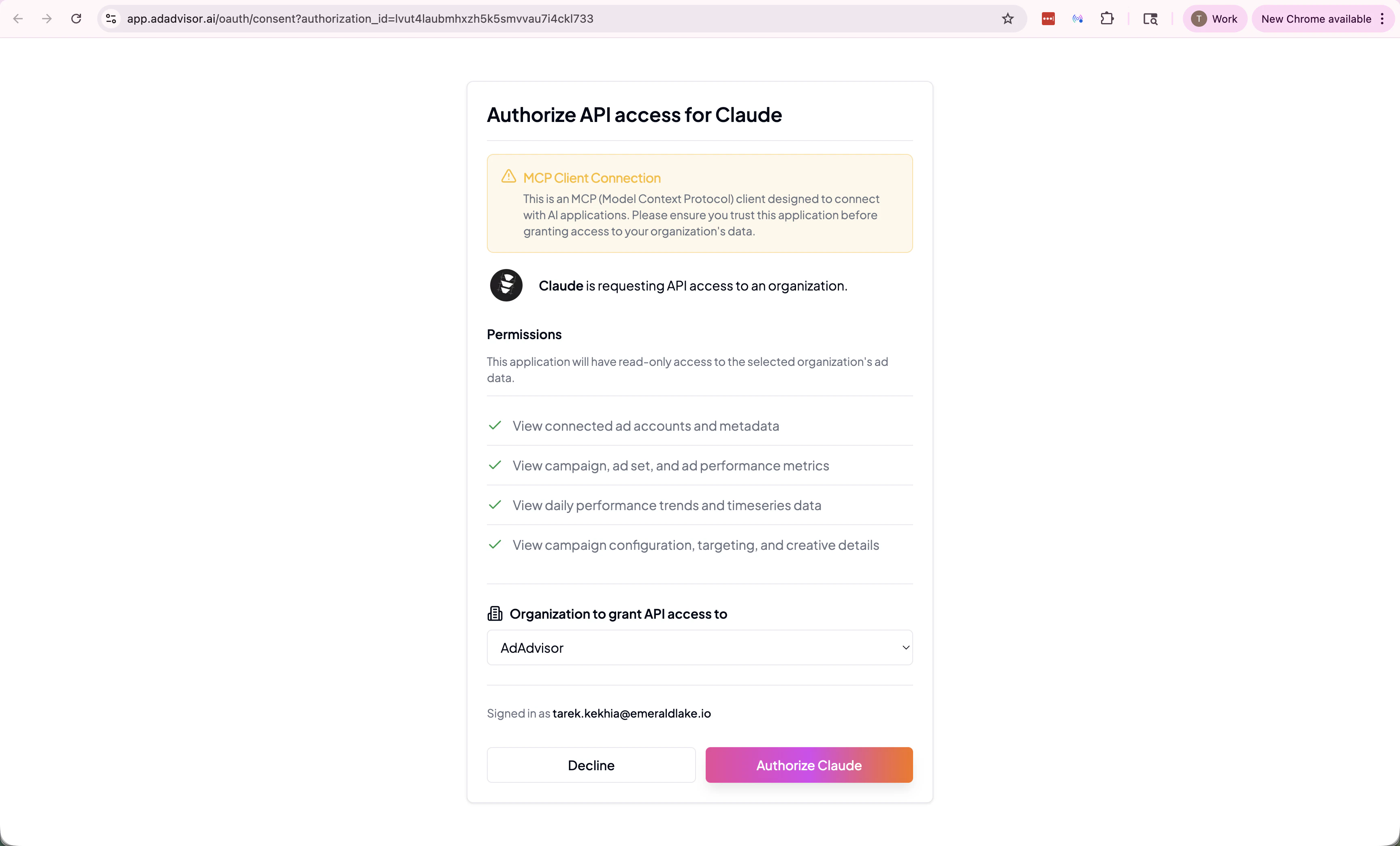
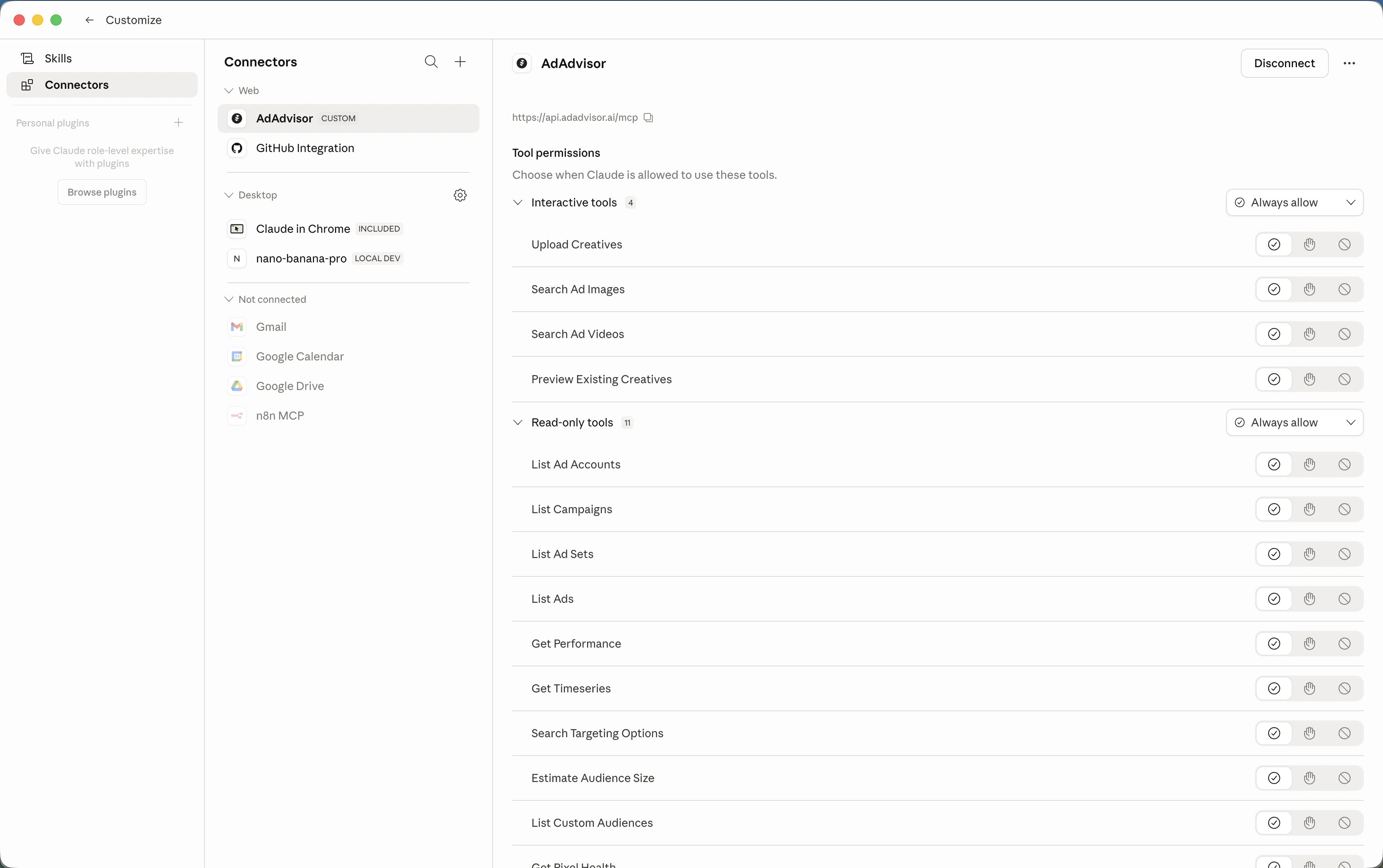
Connectors are available on Claude Pro, Max, Team, and Enterprise plans.
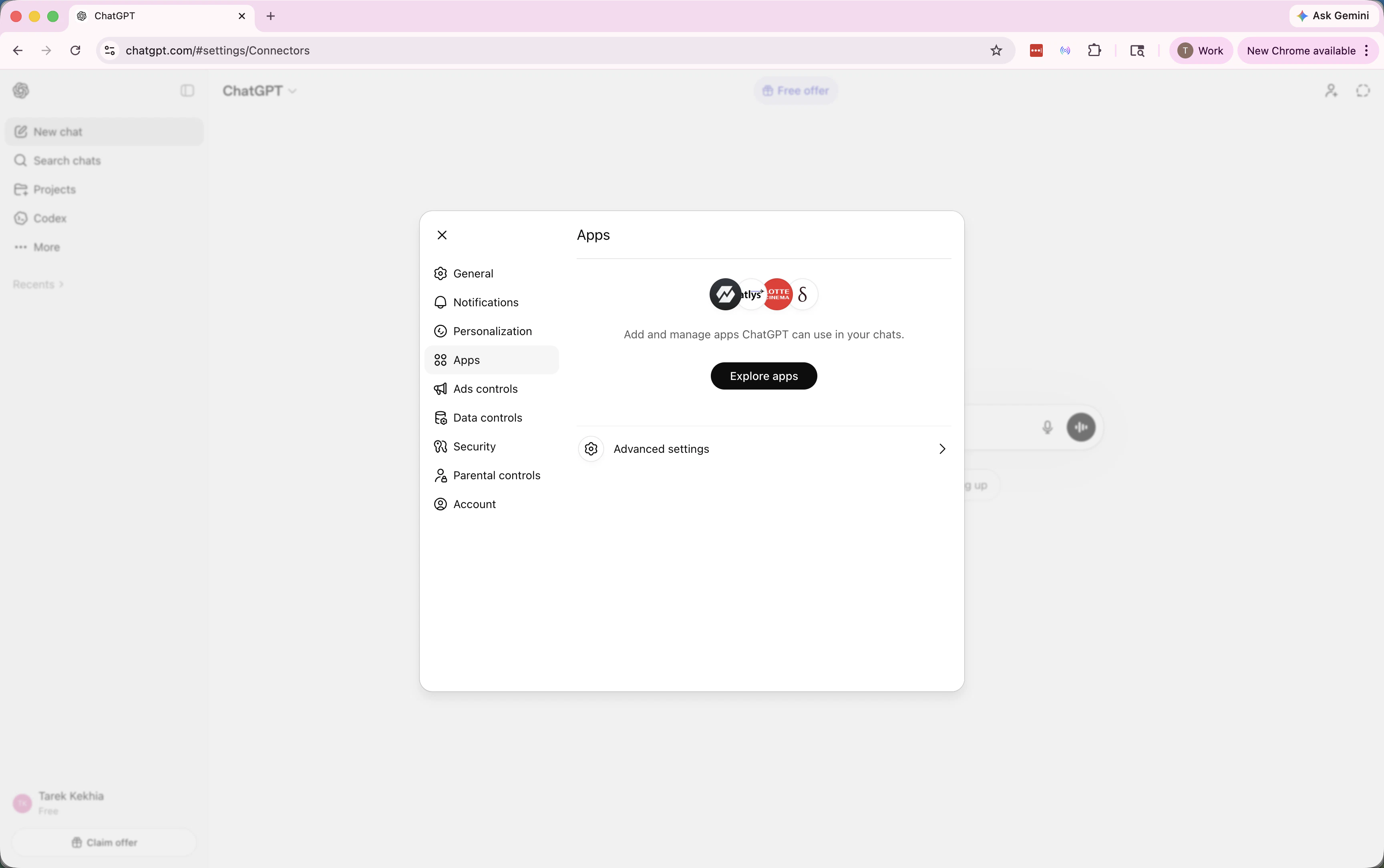
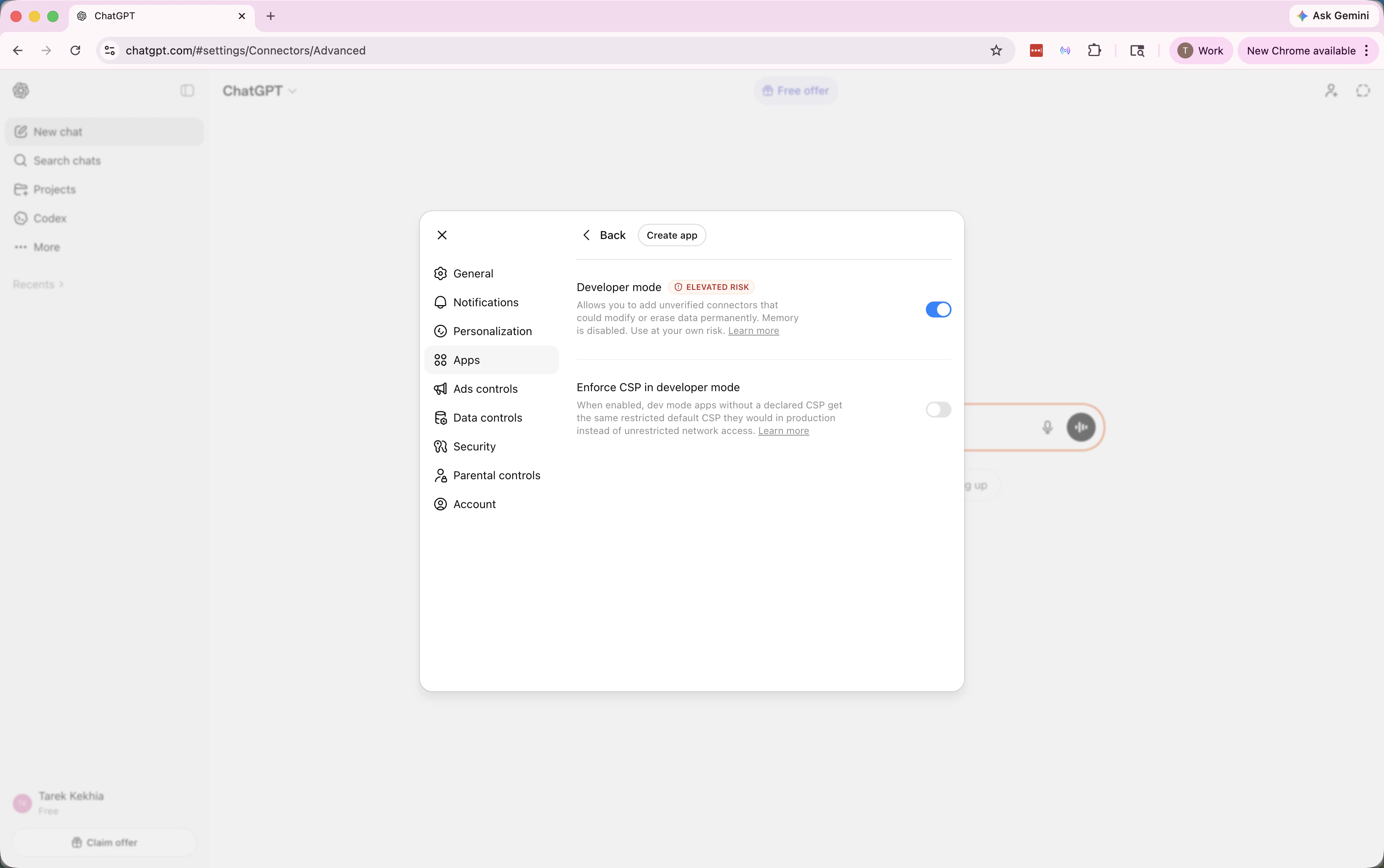
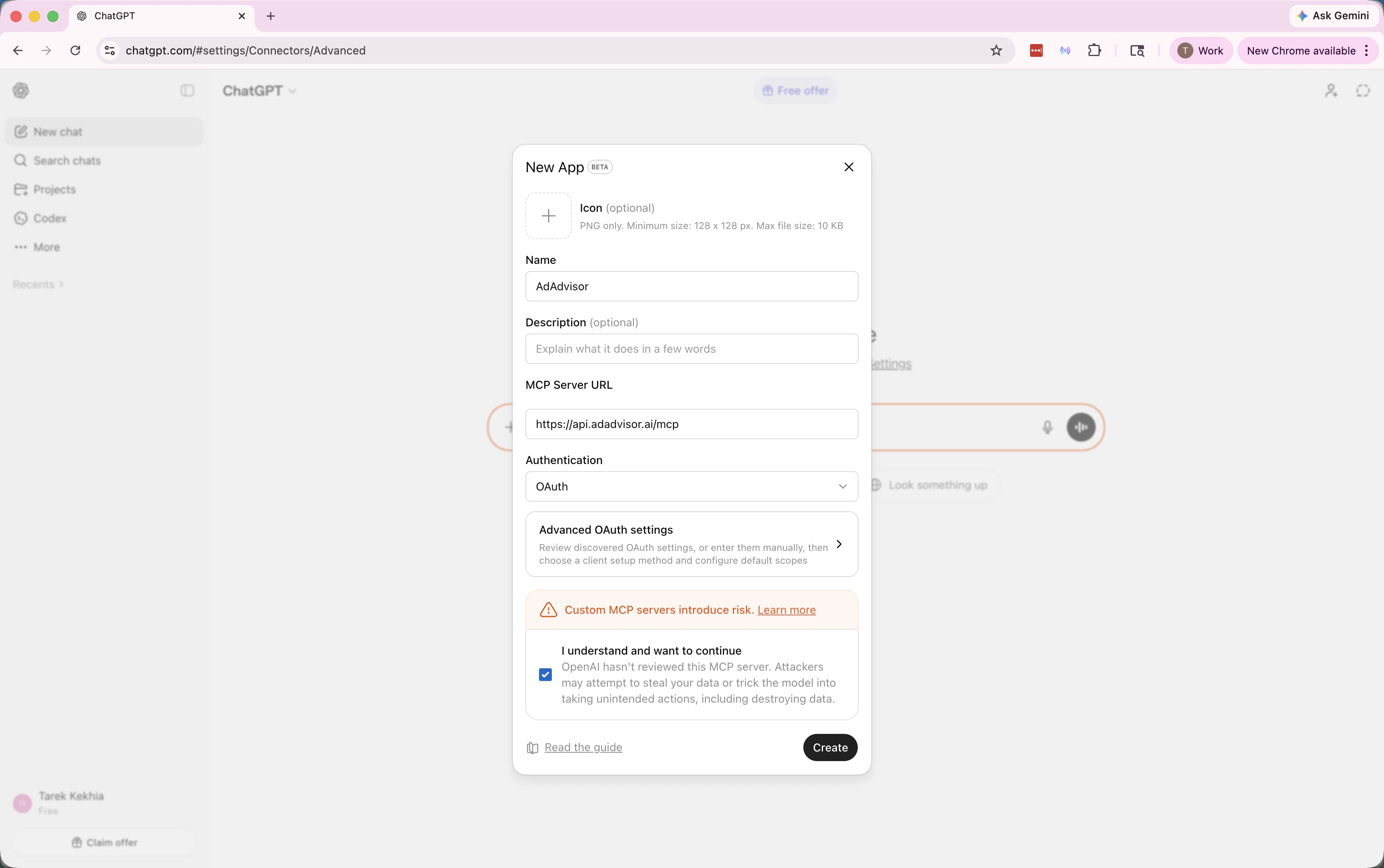
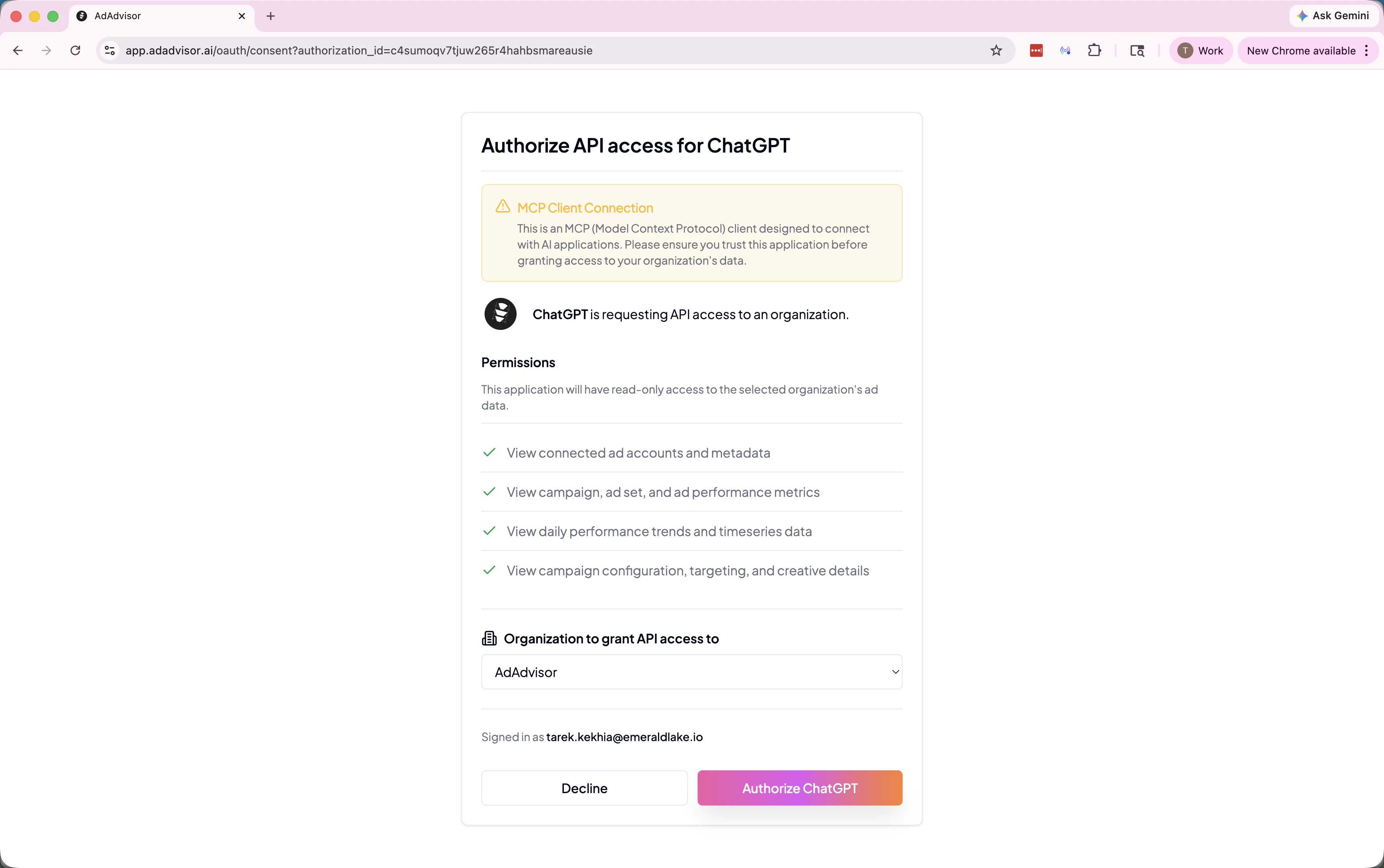
Verifying the connection
After adding the server, try asking your AI assistant something about your ad data. For example:Troubleshooting
Authentication errors (401 Unauthorized)
If using API key auth:- Verify the key hasn’t been revoked or expired in Settings > MCP Server
- Make sure the
Authorizationheader format is exactlyBearer YOUR_API_KEY(with a space after “Bearer”) - Create a new key if needed. See Managing API Keys
- OAuth sessions can expire. Re-authenticate by triggering a new connection from your client:
- Claude Code: Remove and re-add the server with
claude mcp remove adadvisorthen re-run the add command - Claude Desktop / ChatGPT: Open the connector settings, disconnect AdAdvisor, then reconnect
- Other clients: Remove the server entry from your config, restart the client, and re-add it
- Claude Code: Remove and re-add the server with
Server not appearing or tools not loading
- Double-check the URL is exactly
https://api.adadvisor.ai/mcp(no trailing slash, no typos) - Restart your client after editing the config file. Most clients don’t hot-reload MCP config changes.
- Make sure you’re editing the correct config file for your client (project-level vs global)
- If your client uses a JSON config file, check that the JSON is valid. A missing comma or bracket will silently fail.
No data returned
- Verify your Meta ad account is connected in AdAdvisor and the initial data sync has completed. Check Settings > Connected Accounts.
- Make sure the business you’re querying has active campaigns with data in the date range you’re asking about.
Connection timeout
- If you’re behind a corporate firewall or VPN, make sure outbound HTTPS connections to
api.adadvisor.aiaren’t blocked. - Try the
mcp-remoteproxy method (see the “Other clients” tab above) if your client has trouble with direct HTTP connections.
Security best practices
- Use OAuth when possible. It’s more secure than static API keys and handles token rotation automatically.
- One API key per client. If a key is compromised, you only need to revoke and replace that one without affecting other tools.
- Set expiration dates on API keys for shared machines or temporary setups.
- Don’t commit keys to git. Use environment variables or your client’s secure input mechanism instead of hardcoding keys in config files.
Finding the setup instructions in AdAdvisor
You can also find these instructions directly in the app. Go to Settings > MCP Server and scroll down to the “Quick Start” section. Select your client from the dropdown and the instructions (with code blocks you can copy) will appear.